Input Lag Guide: Optimize Windows/Mac for Lowest Latency
Get the short answer first, then use the benchmarks, examples, and BrainRivals practice links to turn the idea into a measurable result.
Quick Answer
This guide turns an abstract idea about reaction speed into something you can notice, measure, and improve. The fastest way to use it is to read the benchmark first, compare it with your own context, then run a related BrainRivals test under the same conditions for a cleaner before-and-after signal.
Key takeaways
- Start with the practical benchmark, not the trivia.
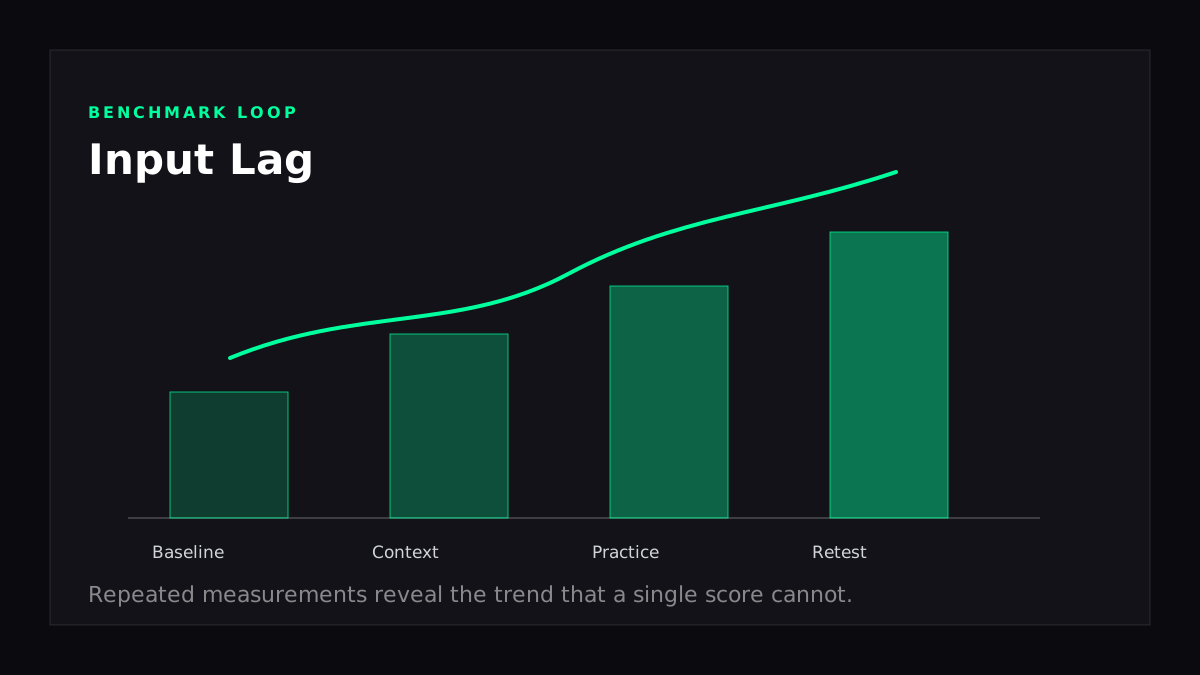
- Treat one score as a snapshot and repeated scores as the real signal.
- Use the Reaction Time as the next measurable step.
How to Use This Guide
Use the article in three passes: scan the quick answer, check the tables or examples that match your situation, then pick one action to test this week. That keeps the article useful even if you only have a few minutes, while still giving you enough detail to come back for deeper context.
Input lag is the delay between your action (clicking, moving the mouse) and the on-screen response. On paper, it's simple. In practice, it's the sum of dozens of micro-delays across your entire stack: hardware, OS, drivers, browser, and display.
The good news: you can reduce it significantly with free optimizations. The bad news: there's a floor below which you can't go without replacing hardware.
What Is Input Lag? The Full Picture
Total latency = Hardware (mouse/keyboard) + OS processing + Driver overhead + Browser event processing + Display rendering + Monitor refresh
Let's break down realistic numbers:
- Mouse: 3-10ms
- OS/Driver: 5-20ms
- Browser: 5-15ms
- GPU rendering: 2-8ms
- Monitor display: 10-40ms (depending on panel type)
Total realistic range: 25-90ms for modern systems. High-end gaming setups: 15-40ms. Older systems: 50-100ms+.
The good news: you control most of this. Let's optimize.
Windows Optimizations
1. High Performance Power Plan
Windows throttles CPU and GPU to save power. This adds latency inconsistently.
Steps:
- Search "Power Plan" in Windows
- Select "High Performance"
- Click "Change Plan Settings"
- Set "Put the computer to sleep" to "Never"
- Set "Turn off the display" to "Never"
Expected improvement: 5-15ms
Your system will use more power, but this is critical for consistent latency in competitive tests.
2. Disable Mouse Acceleration
This is huge. Windows applies smoothing and acceleration to your mouse movement, adding 10-30ms of unpredictable lag.
Steps:
- Settings > Mouse > Additional Mouse Options
- Go to "Pointer Options" tab
- Uncheck "Enhance Pointer Precision"
- Set motion speed to the middle (neutral)
Expected improvement: 10-30ms
This single change is often worth 2-4% improvement on reaction time tests.
3. Raw Input and DPI Settings
Games support "raw input" which bypasses Windows mouse acceleration entirely. Unfortunately, web browsers don't expose this directly, but you can optimize here:
- Set your mouse DPI to a reasonable level (400-3200 depending on preference)
- Keep it consistent across sessions
- Avoid changing DPI between tests
Why? Windows processes lower DPI as "more significant" movement, potentially adding variable latency. Consistency is more important than absolute value.
4. Disable Fullscreen Optimizations (if using fullscreen)
If you're testing in fullscreen mode:
- Right-click your browser icon > Properties
- Go to "Compatibility" tab
- Check "Disable fullscreen optimizations"
Expected improvement: 2-5ms in fullscreen mode
5. Update Your Drivers
Outdated chipset and GPU drivers add latency.
- GPU drivers: NVIDIA Driver, AMD Adrenalin, Intel Arc Control (update monthly)
- Chipset drivers: Check your motherboard manufacturer's website
- Mouse drivers: Usually automatic, but check if your mouse has a control panel
Expected improvement: 5-15ms if you're far behind on updates
6. Close Background Apps
Every app running steals CPU cycles. Each one adds variance to your latency.
Before testing:
- Close Discord
- Close Spotify
- Close streaming apps
- Disable Windows Update (temporarily)
- Close all background Chrome tabs except your test tab
Expected improvement: 10-40ms if you're a background app hoarder
Use Task Manager > Startup tab to disable unnecessary startup apps permanently.
macOS Optimizations
Mac has fewer tweaks available since Apple controls the OS more tightly, but:
- Close background apps: Use Activity Monitor to identify CPU hogs
- Disable animations: System Preferences > Accessibility > Display > Reduce motion
- Keep macOS updated: Apple frequently optimizes input handling
- Use Safari or Chrome: Firefox on Mac has historically higher input lag
- Disable Spotlight indexing: System Preferences > Siri & Spotlight > Uncheck unnecessary items
Expected improvement: 5-10ms (macOS is generally more optimized out of the box than Windows)
Browser Optimizations
Your browser sits between your OS and the test. Some choices are better than others.
Browser Comparison (Typical Input Lag)
| Browser | Input Lag | Notes |
|---|---|---|
| Chrome | 5-12ms | Fastest on Windows. Hardware acceleration enabled by default. |
| Edge | 6-13ms | Chromium-based, very similar to Chrome. |
| Firefox | 8-15ms | Good but slightly slower. Mouse.getCoalescedEvents() helps. |
| Safari | 7-14ms | Optimized for Mac but slower on Windows via remote play. |
| Opera | 6-12ms | Chromium-based, rarely used but solid. |
Recommendation: Use Chrome or Edge for the lowest latency.
Enable Hardware Acceleration in Chrome
- Chrome Settings > System
- Toggle ON "Use hardware acceleration"
- Restart Chrome
This offloads input processing to your GPU, reducing CPU bottlenecks.
Expected improvement: 2-5ms
Disable Chrome Extensions
Extensions add latency by hooking into the event loop.
Before testing:
- Chrome Settings > Extensions
- Disable everything except essentials
- Or use an Incognito window (runs without extensions)
Expected improvement: 2-10ms if you have many extensions
Clear Browser Cache
A bloated cache can slow down event processing.
- Chrome Settings > Clear Browsing Data
- Select "All time"
- Check "Cookies and other site data"
Expected improvement: 1-3ms (minor but cumulative)
Measuring Your Input Lag
You can't directly measure input lag through BrainRivals (the test infrastructure adds variable latency), but you can test your system:
- Pointerlock Lag Tester (online tool): Tests raw input lag via JavaScript
- Blur Busters Input Lag Tool: More comprehensive testing
- Mouse reaction time consistency: If your reaction times vary wildly (±50ms), high input lag variance is likely
High variance is worse than high absolute lag. Consistency matters more.
Realistic Expectations
If you follow all the above optimizations:
- Starting point (stock Windows + Firefox): 50-80ms
- After basic optimization: 30-45ms
- After aggressive optimization: 20-35ms
- High-end gaming setup: 15-25ms
You can realistically gain 10-30ms of latency reduction through software. Beyond that, you need hardware upgrades (monitor, mouse, SSD for OS).
For context: the difference between 50ms and 30ms is about 6-8% improvement on reaction time tests. Not massive, but measurable.
The Optimization Priority List
Do these in order:
- Disable mouse acceleration (10-30ms gain, 2 minutes)
- High performance power plan (5-15ms gain, 1 minute)
- Close background apps (10-40ms gain, 2 minutes)
- Use Chrome + hardware acceleration (5-10ms gain, 2 minutes)
- Update GPU drivers (5-15ms gain, 10 minutes)
- Disable fullscreen optimizations (2-5ms gain, 1 minute)
That's 30 minutes for a potential 35-115ms improvement. Worth it.
When to Stop Optimizing
Stop when:
- Your reaction times are consistent (low variance)
- You're hitting the hardware limits of your monitor/mouse
- Further optimization requires expensive upgrades
- Your scores have plateaued for 3-5 test sessions
Chasing single-millisecond improvements becomes diminishing returns. Your actual reaction time variance (the biological part) is usually ±30-50ms. Reducing latency below that won't help much.
Final Checklist Before Testing
- High Performance power plan enabled
- Mouse acceleration disabled
- Background apps closed
- Using Chrome or Edge
- Hardware acceleration enabled
- GPU drivers updated
- Browser cache cleared
- Gaming mouse (wired or modern wireless)
- 144Hz+ monitor if possible
Ready to test how your optimized setup performs? Take the Reaction Time test and measure your actual improvement.
Try It on BrainRivals
Reading about the concept is useful, but a repeatable score is more actionable. Run the Reaction Time and Aim Trainer tests, save your result, then repeat under similar conditions later. The trend matters more than a single best attempt.